
Sessions
A session in Fast Bounce is one Pro Tools session plus the list of bounces you've set up for it. The list is saved inside the session folder, so it follows the session wherever it goes.
Add the open session
With a session open in Pro Tools, click + in the rail or press ⌃⌘L. The shortcut is global: it works while Pro Tools is in front. Fast Bounce reads the session's tracks, memory locations, mix sources and format, and the session appears in the rail with a green dot.
Load several sessions at once
Drop .ptx files anywhere on the window, or click + and Choose Sessions…. The Load Sessions sheet walks through four steps:
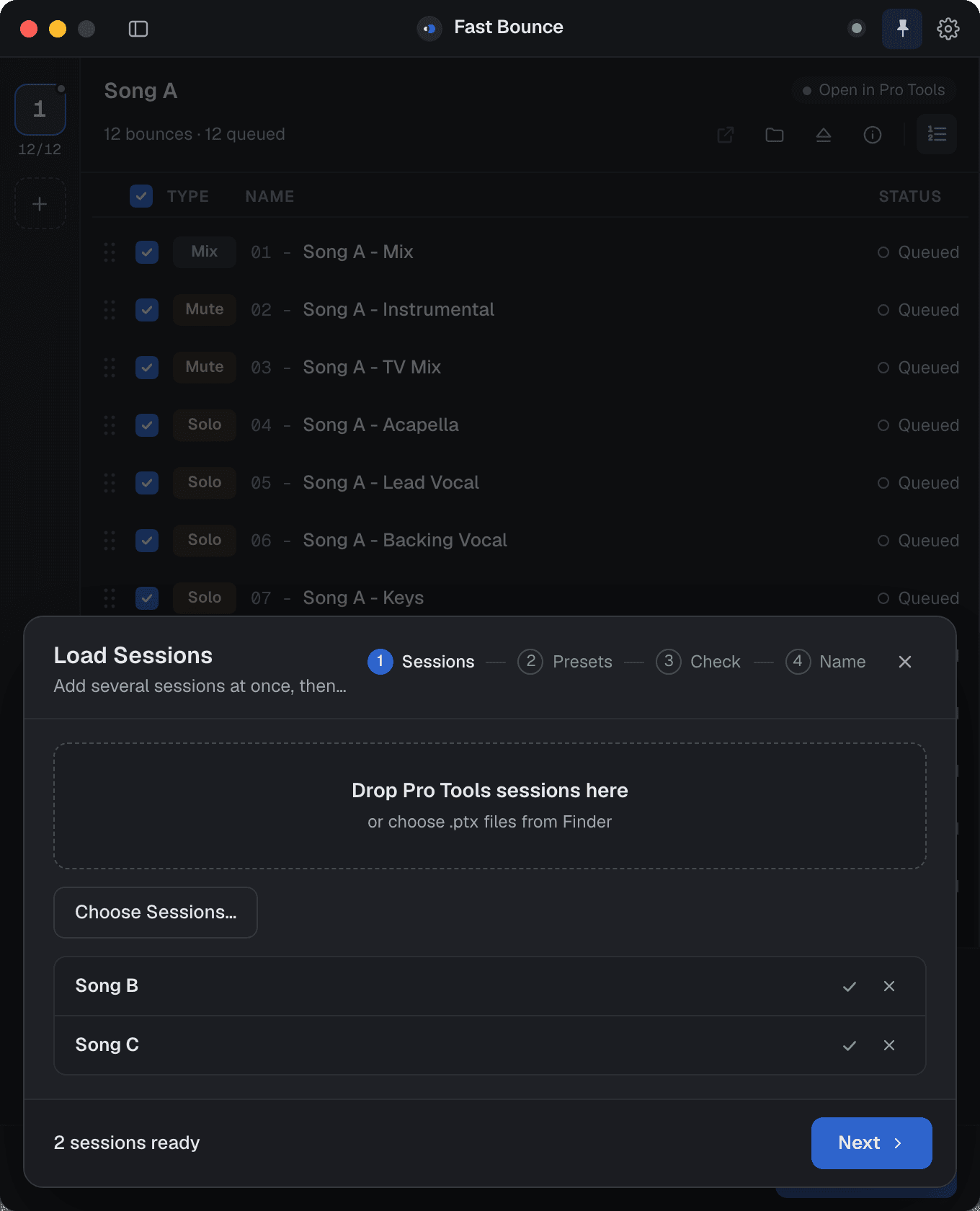
- Sessions. The files you dropped, checked as Fast Bounce reads each one. A session it can't read says so; the others still load.
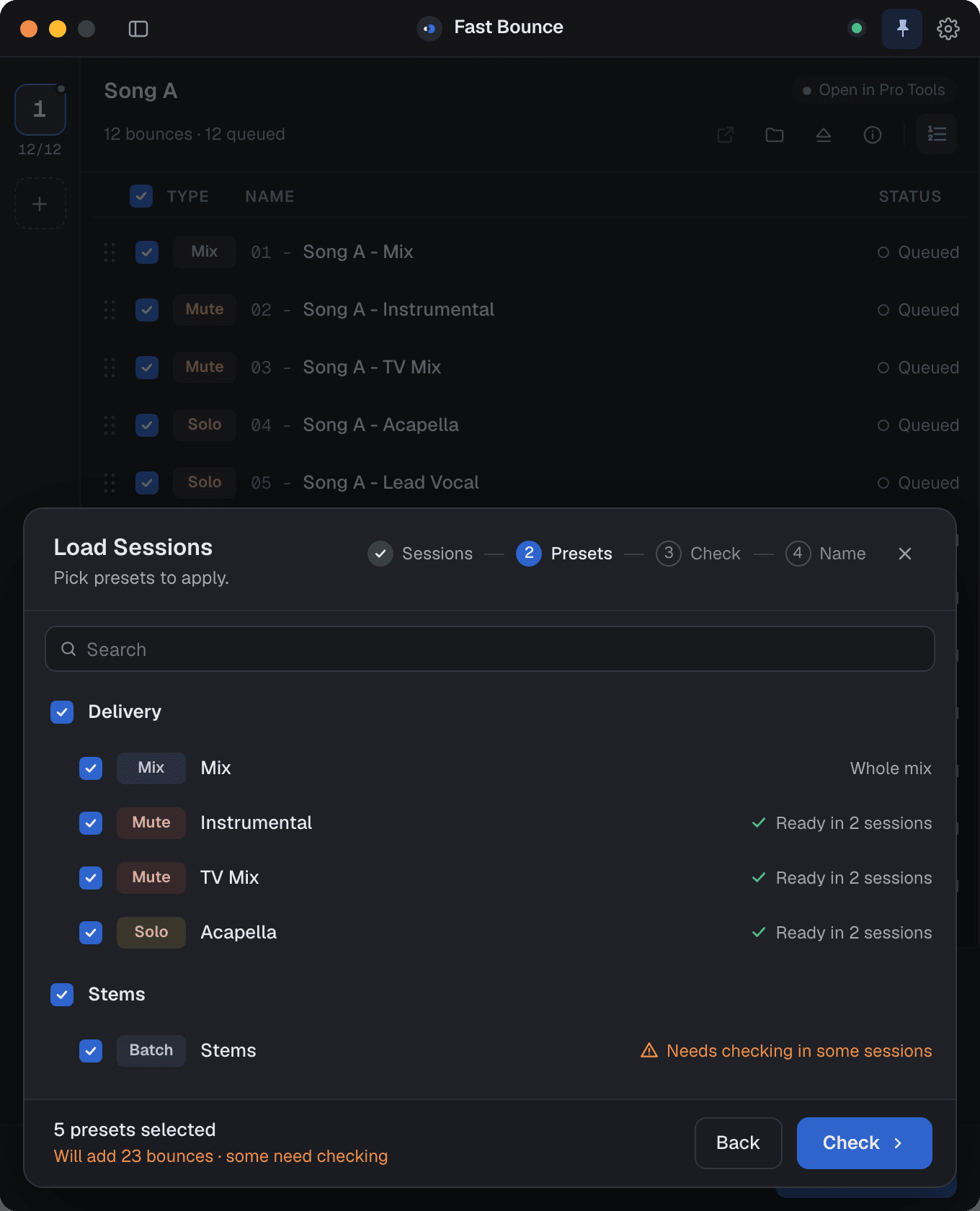
- Presets. Pick presets to apply to all of them, or choose Add sessions only.
- Check. For each session, whether the presets' tracks, buses and markers were found. See Presets.
- Name. The names the new bounces will get. Then Add 24 Bounces to 3 Sessions.
Nothing is opened in Pro Tools until the queue runs, so loading an album of sessions takes seconds.
What the rail tells you
Only one session can be open in Pro Tools at a time. Hovering a tile says where it stands:
| Tile | Meaning |
|---|---|
| Green dot | Open in Pro Tools. You can add bounces. |
| "Open in Pro Tools · Click to load" | Loaded in Fast Bounce only. Click to have Pro Tools open it. |
| "No Session Open in Pro Tools" / "Pro Tools Not Connected" | Pro Tools can't take a session right now. |
You can set up bounces for the open session, and run the queue for all of them: Fast Bounce switches sessions by itself. See Running the queue.
Your bounces travel with the session
Each session's bounce list is saved in a .fastbounce/ folder next to the .ptx file. That means:
- Copy the session folder to another computer, sync it through Dropbox or hand it to another engineer, and the bounces come with it.
- Save As a new version of the session and Fast Bounce recognizes it and carries the list over.
- If the list changes on another machine while the session is loaded here, Fast Bounce picks up the change instead of overwriting it.
Nothing about your computer, such as the path to the session, is stored in that folder.
Eject, or delete
- Eject (⇧⌘E) removes the session from the rail. The bounce list stays in the session folder; load the session again and it's back.
- Delete session, in Session info, removes the saved bounce list too. The Pro Tools session file is never deleted.
Session info (the ⓘ button in the header) lists the session's tracks, memory locations, mix sources and format. If you've added tracks or changed routing since, the next bounce sheet picks it up.