
The main window
One window holds everything. Read it top to bottom and it follows the order you work in: which session, which bounces, how they're set up, then Bounce.
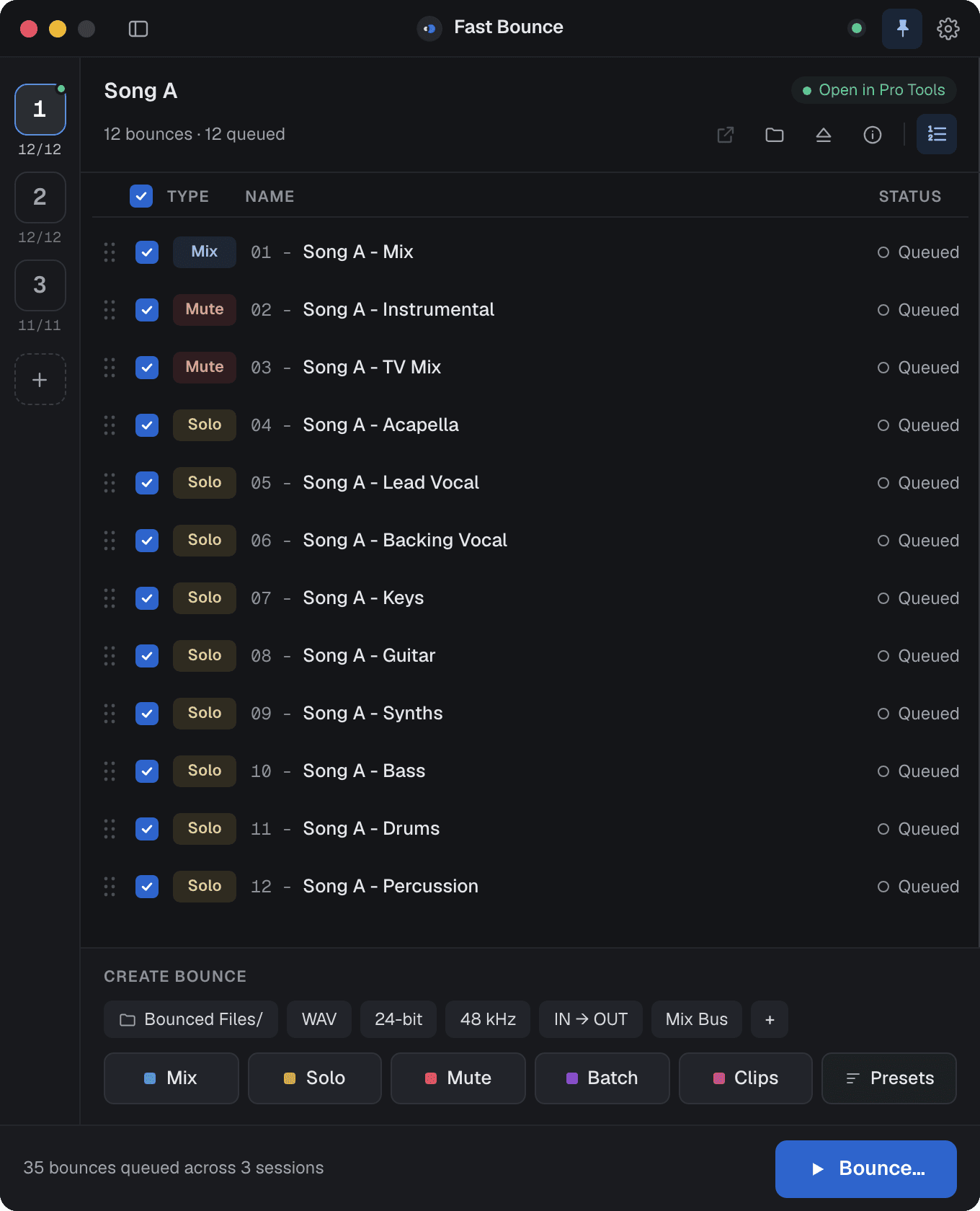
Title bar
- Sessions toggle (⌘\) widens the rail into a sidebar with session names.
- Pro Tools badge: green means connected, and the label tells you when no session is open or Pro Tools isn't running. See Install and sign in.
- Pin keeps Fast Bounce on top of Pro Tools so it stays visible while you work. Click again to release.
- Settings (⌘,) opens the Settings window. See Settings.
On the free plan a Free Plan chip sits here too; click it to see what's included.
Session rail
Every loaded session is a numbered tile. Press ⌘1 to ⌘9 to switch. Under each number, 6/12 means six of twelve bounces are queued. A green dot marks the session that's open in Pro Tools. + adds the open session, or opens Load Sessions when you drop .ptx files on it.
See Sessions.
Session header
The session's name, its bounce count, and five buttons:
| Button | What it does |
|---|---|
| Open in Pro Tools | Opens this session in Pro Tools (shown as a green chip when it's already open). |
| Reveal in Finder | Shows the session folder. |
| Session info | Name, path, dates, tracks, memory locations, mix sources and format. |
| Number bounces | Prefixes every bounce with its position: 01 - , 02 - … |
| Eject (⇧⌘E) | Removes the session from Fast Bounce. Its bounce list stays in the session folder, so loading it again brings everything back. |
The bounce list
One row per bounce: a checkbox, the type chip, the name and the status.
- Checked means queued. Uncheck a bounce to keep it in the list without running it. The checkbox in the header queues or unqueues all.
- Type is always
Mix,SoloorMute. See Bounce creation. - Status is an icon and a word:





Drag the handle on the left to reorder. Click a row to select it; ⌘A selects all. Selected bounces can be edited together, duplicated (⌘D), removed (Delete) or have settings pasted onto them. See Editing a bounce.
Create bounce
Two rows at the bottom of the list.
The setup chips hold the values the next bounce will get: folder, file type, bit depth, sample rate, range, mix source and, behind +, the bounce options. Values come from the session until you change one. See Bounce creation.


The mode buttons turn your current Pro Tools selection into bounces. Presets applies saved recipes instead.






The mode buttons are only active for the session that's open in Pro Tools. For any other session the row says "Open this session in Pro Tools to add bounces".
Footer
Idle, it counts what's queued ("29 bounces queued across 3 sessions") and offers Bounce…. While bouncing, it shows "Bouncing 4 of 10", the elapsed time, a progress bar, and Pause and Stop. See Running the queue.