
Editing a bounce
A bounce isn't fixed once it's in the list. Edit it, edit many together, copy its setup onto others, or duplicate it for a second format.
Edit one bounce
Double-click a row, or select it and press ⌘E. The Edit sheet has the same parts as the Add sheet: name, tracks (for Solo and Mute) and the setup chips. Change what you need and Apply.
Edit many at once
Select several rows (click, shift-click, or ⌘A for all) and press ⌘E. The sheet becomes Edit 8 Bounces:
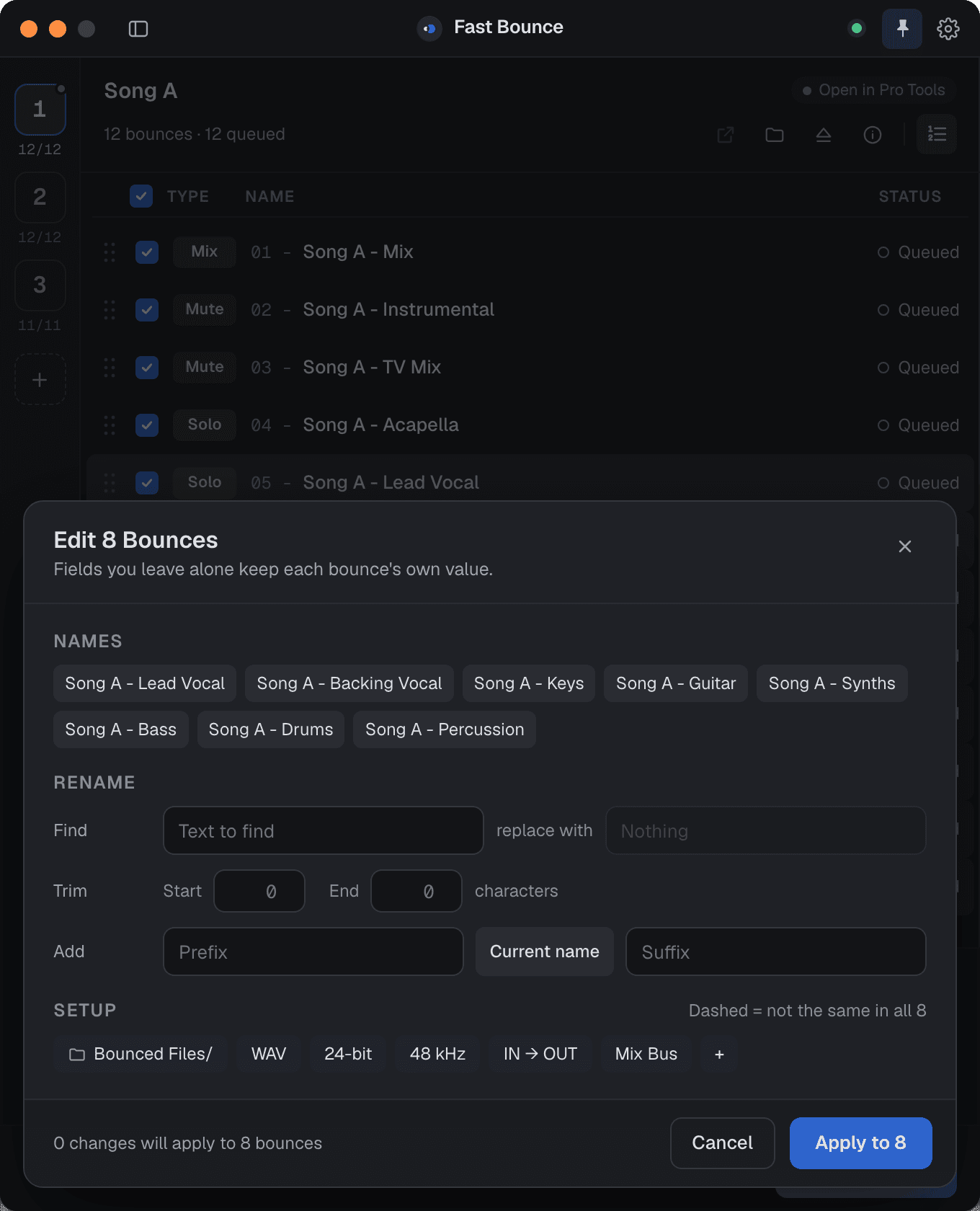
- Chips whose value is the same in every bounce show it. Chips that differ show Mixed with a dashed outline. Leave a chip alone and each bounce keeps its own value; set it and they all get the new one.
- Rename works on all the names: Find / Replace, Trim, and Add before or after. See Naming bounces.
- Apply to 8 writes the changes.
Tracks can't be edited for several bounces at once, since each bounce has its own.
Copy settings, paste settings
Pick a bounce whose setup is right and press ⌘C. Select the bounces that should match and press ⌘V: the Paste Settings sheet lets you choose which parts to paste, such as only the folder and the sample rate. Names and tracks are never pasted. ⌥⌘V pastes the same parts you chose last time without asking.
Duplicate
⌘D duplicates the selected bounces. Use it for a second format of the same mix: duplicate, then change the copy's file type.
Remove
Delete or Backspace removes the selected bounces. There's no undo, but a removed bounce can be added again from its preset in a few clicks.
Editing, pasting and removing are locked while the queue runs. Pause first.