Workflow
How to Name and Organize Stems for Delivery

Stems keep working long after the mix is approved: in remixes, immersive mixes, live playback, games and film. The person who opens your folder months later often has little more than the file names to go on. If the names don't say which song, which mix revision and which part of the mix each file holds, they have to guess.
This guide gives you one stem naming convention to copy, built on the Recording Academy Producers & Engineers Wing's 2025 Delivery Recommendations. It covers the character rules behind it, alternate versions, revisions and a folder tree for an album, then shows how to get those names out of Pro Tools.
The stem naming convention to copy
The P&E Wing's template for stereo stems has 6 fields, separated by underscores:
01_ArtistInitials_SongTitle_MixerInitialsMixRevision_StemName_sampleratebitdepth.wavTo keep things easy to follow, the examples in this guide use a made-up project: the artist Ana Bell (AB), her album First Light, the songs Night Drive and Grace, and a mixer with the initials JD.
Field | Example | What goes in it |
|---|---|---|
Stem number | 01 | Sets the file order. Number related stems in sequence so they stack together on import. |
ArtistInitials | AB | Usually 2 letters, from the artist's first and last name. |
SongTitle | NightDrive | No spaces, punctuation or accents. Under 15 characters if you can, because other programs may shorten long titles on import. |
MixerInitialsMixRevision | JD01 | Your initials plus the mix revision. P&E's own examples look like MI01 and JB01. |
StemName | Kick | What the stem holds. |
sampleratebitdepth | 96k24 | The sample rate and bit depth of the file itself, written the P&E way: 96k24 is 96 kHz and 24-bit. |
Here's a stem set for Night Drive, following the P&E template:
01_AB_NightDrive_JD01_Kick_96k24.wav
02_AB_NightDrive_JD01_Snare_96k24.wav
03_AB_NightDrive_JD01_Toms_96k24.wav
04_AB_NightDrive_JD01_Overheads_96k24.wav
05_AB_NightDrive_JD01_Room_96k24.wav
06_AB_NightDrive_JD01_DrumFX_96k24.wav
07_AB_NightDrive_JD01_Bass_96k24.wav
08_AB_NightDrive_JD01_Keys_96k24.wav
09_AB_NightDrive_JD01_BGVox_96k24.wav
10_AB_NightDrive_JD01_LeadVoxDry_96k24.wav
11_AB_NightDrive_JD01_LeadVoxVerb_96k24.wav
12_AB_NightDrive_JD01_LeadVoxDelay_96k24.wav
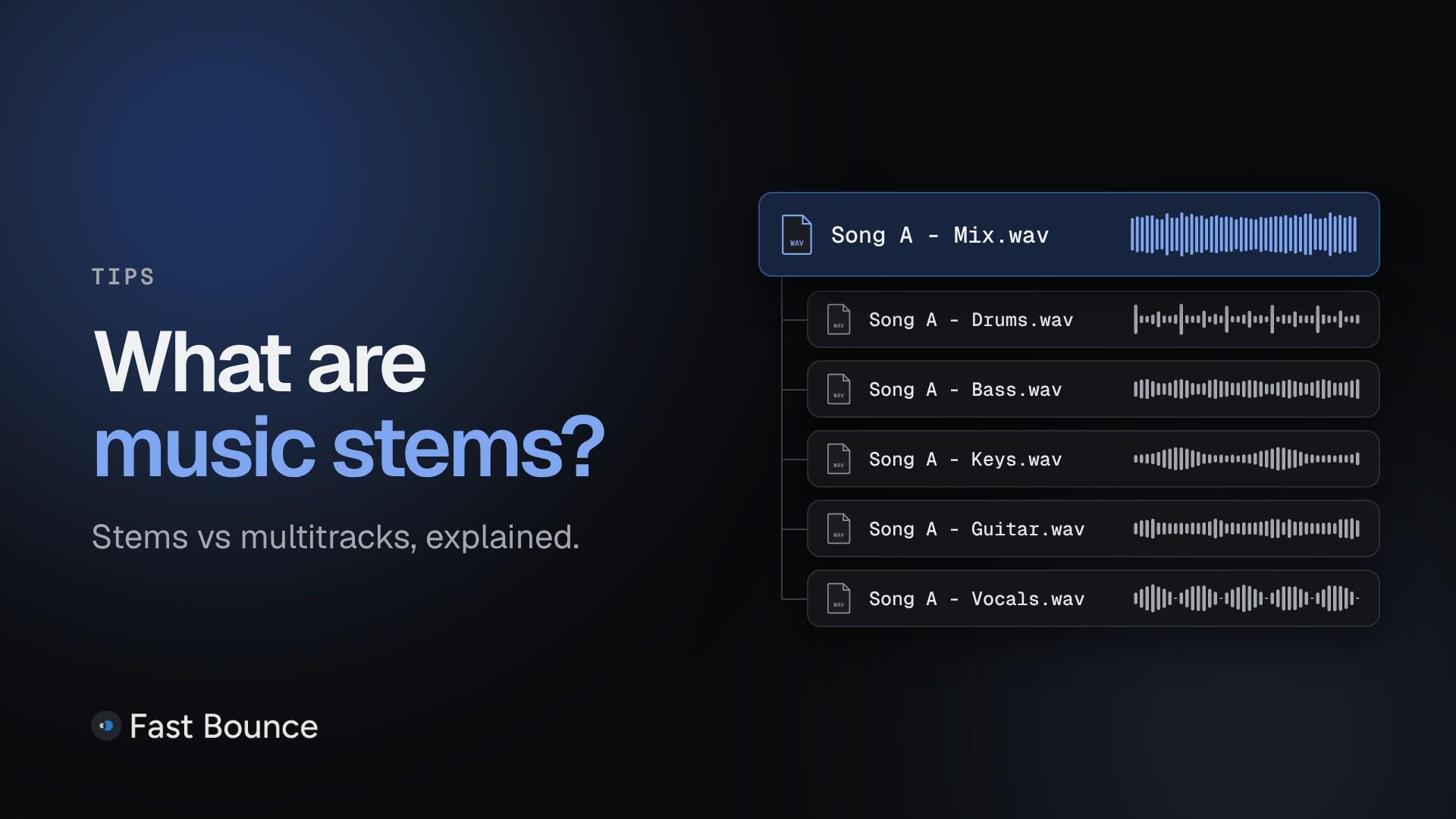
The split follows the P&E default stem set: drums separated into kick, snare, toms, overheads, room and effects, and the lead vocal kept apart from its effects. That default only applies when the client hasn't asked for a specific set, so check the client's spec first. Not sure which stems to deliver? Start with what music stems are.
Character rules that keep names readable everywhere
The P&E Wing lists the characters you can use. Anything not on the list is treated as illegal:
Use only uppercase and lowercase letters (U.S. alphabet), numbers, underscores and hyphens.
Never use spaces, emojis, accents, currency or other symbols (@, $, &, #, *), or parentheses.
Use one period, right before the extension, and always show the extension.
Stay within 128 characters for the whole file name.
Capitalize each word. With no spaces, NightDrive and LeadVoxDry stay easy to read at a glance.
Write dates the ISO way if you add one. Numbers without hyphens (YYYYMMDD) are acceptable.
Don't use aliases or links in place of real files.
Why so strict? The P&E Wing warns that special characters in file names "can introduce errors in song searches and royalty tracking."
How to name alternate versions and mix versions
Stems usually travel with mix versions. The P&E Wing's sister template drops the leading number and puts the mix version where the stem name would be:
ArtistInitials_SongTitle_MixerInitialsMixRevision_MixVersion_sampleratebitdepth.wavIts recommended versions are the Approved Mix Master, Vocal Up, No Lead Vocal (once called the TV Track), Instrumental, and Lead Vocal Only With Effects, an a cappella with its effects. Some example names:
Version | Example file name |
|---|---|
Approved Mix Master | AB_NightDrive_JD02_Master_96k24.wav |
Vocal Up | AB_NightDrive_JD02_VocalUp_96k24.wav |
No Lead Vocal | AB_NightDrive_JD02_NoLeadVocal_96k24.wav |
Instrumental | AB_NightDrive_JD02_Instrumental_96k24.wav |
Lead Vocal Only With Effects | AB_NightDrive_JD02_LeadVocalWet_96k24.wav |
Note that the P&E Wing considers the No Lead Vocal and Instrumental mixes to be stems.
Alternate versions and remixes are different. The P&E Wing treats each one as a song in its own right. An acoustic version of Grace gets its own song title (GraceAcoustic), its own folder and its own stem set, numbered from 01.
How to name revisions
Revisions are where stem folders usually get messy. Four habits keep them clean:
Raise the revision number, not the adjectives. JD01 becomes JD02. A word like "final" can't tell anyone which file is newer. A number can.
Treat a recall as a new delivery. The P&E Wing says a recalled mix "is considered a new delivery", and so are combined stems or changed levels. The new set of stems goes in a new version folder.
Rename the whole set. Every stem in the new folder carries the new revision, including the ones that didn't change.
Match the revision to the session. For immersive files, the P&E Wing says to align the mix revision number with the DAW session version. We suggest the same habit for stereo stems.
Keep the revision at 2 digits. JD02 and JD10 then sort in the right order.
A folder tree for an album delivery
The P&E Wing's sample hierarchy goes Artist, then Project, then one folder per song. Under each song sit folders for multitracks, mixes, stems and project metadata. It's offered as a starting point, so trim it to what a stem delivery needs. Here's an album example:
AnaBell/
└── FirstLight/
    ├── NightDrive/
    │   ├── Mixes/
    │   │   ├── ReferenceMixes/
    │   │   └── ApprovedMixes/
    │   │       ├── AB_NightDrive_JD02_Master_96k24.wav
    │   │       └── AB_NightDrive_JD02_Instrumental_96k24.wav
    │   ├── Stems/
    │   │   ├── JD01/
    │   │   └── JD02/
    │   │       ├── 01_AB_NightDrive_JD02_Kick_96k24.wav
    │   │       ├── 02_AB_NightDrive_JD02_Snare_96k24.wav
    │   │       └── ...
    │   └── ProjectMetadata/
    ├── Grace/
    │   ├── Mixes/
    │   ├── Stems/
    │   │   └── JD01/
    │   │       ├── 01_AB_Grace_JD01_Kick_48k24.wav
    │   │       └── ...
    │   └── ProjectMetadata/
    └── GraceAcoustic/
        ├── Mixes/
        ├── Stems/
        └── ProjectMetadata/
A few notes on the tree:
Artist folder: the P&E Wing recommends the full artist name.
One folder per song. GraceAcoustic sits next to Grace, not inside it, because alternate versions count as songs.
Stems holds the stem audio created from the master mix. Version folders (JD01, JD02) are one way to keep deliveries apart.
ProjectMetadata holds the documentation as PDF, plus codes such as ISRCs.
No spaces in folder names either. The P&E rule on spaces is written for file names, and its chart labels have spaces, so this is just the cautious choice.
How to get these names out of Pro Tools
Pro Tools doesn't know your naming convention, so the names come from what you type and from how you name your buses.
One stem at a time with Bounce Mix
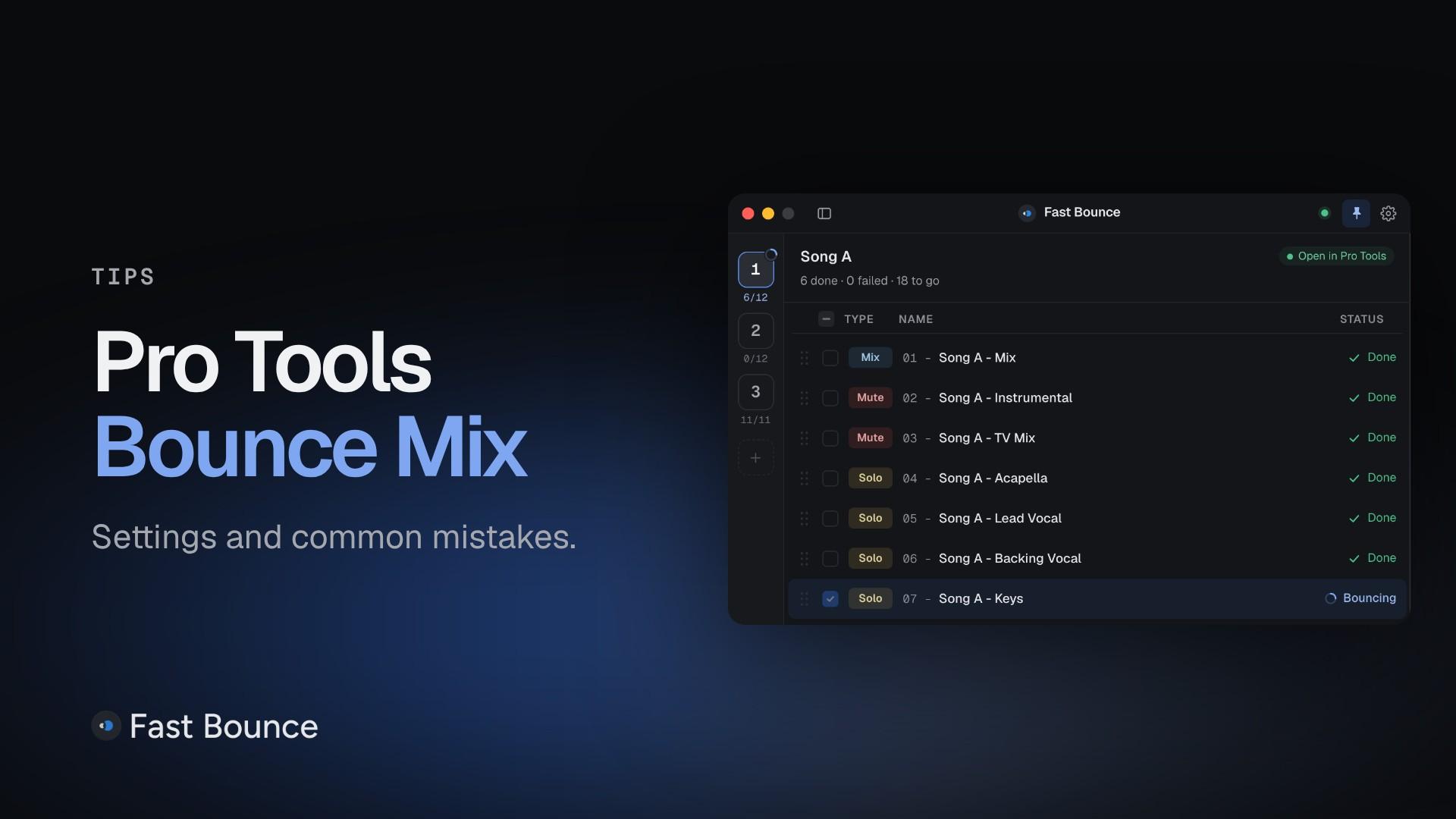
Each bounce takes the name you type in the Bounce Mix window. Bounce Mix presets store every setting except the file name, as Avid's Pro Tools Reference Guide notes, so a preset won't name your stems for you. Keep every part of the name the same except the leading number and the stem name: 01_AB_NightDrive_JD02_Kick_96k24, then 02_AB_NightDrive_JD02_Snare_96k24.
Presets do help with where files land. Under Location you can choose Session Folder, Prompt for Location or a fixed Directory. Subfolder names inside the session folder are saved and recalled with presets, so a stem preset can send every file to the same Stems folder. For every other setting in the window, see our Pro Tools Bounce Mix guide.
Several stems in one pass
On Pro Tools Studio and Ultimate, one Bounce Mix can bounce several Mix Sources, one file per source (unless you choose a single interleaved file). Pro Tools builds each name for you: the file name you typed, then the Mix Source name, then a number, as <file name>_<source name>_<n>.
So the bus name becomes the stem name. Name your stem buses Kick, Snare, LeadVoxDry and the files follow. The result is close to the P&E template but not the same: the stem number doesn't lead, anything you type (such as 96k24) comes before the stem name, and a number is added at the end. If the client needs the template exactly, ask whether this pattern is acceptable or plan a rename pass. Our Pro Tools stems guide covers this method step by step.
Your stem naming cheat sheet
Copy the template:
01_ArtistInitials_SongTitle_MixerInitialsMixRevision_StemName_sampleratebitdepth.wav.Use letters, numbers, underscores and hyphens only, one period, 128 characters at most.
Name mix versions with the sister template, and give alternate versions and remixes their own song folder.
Raise the revision (JD01, JD02) on every file, and put each new set in a new version folder.
File stems under Artist, Project, Song Title and Stems.
Check the client's own spec first. It always wins over the template.
Name every stem before it bounces with Fast Bounce
A 10-song album with 12 stems per song is 120 names to type, and each revision round renames the whole set. Every name typed by hand is a chance for a typo.
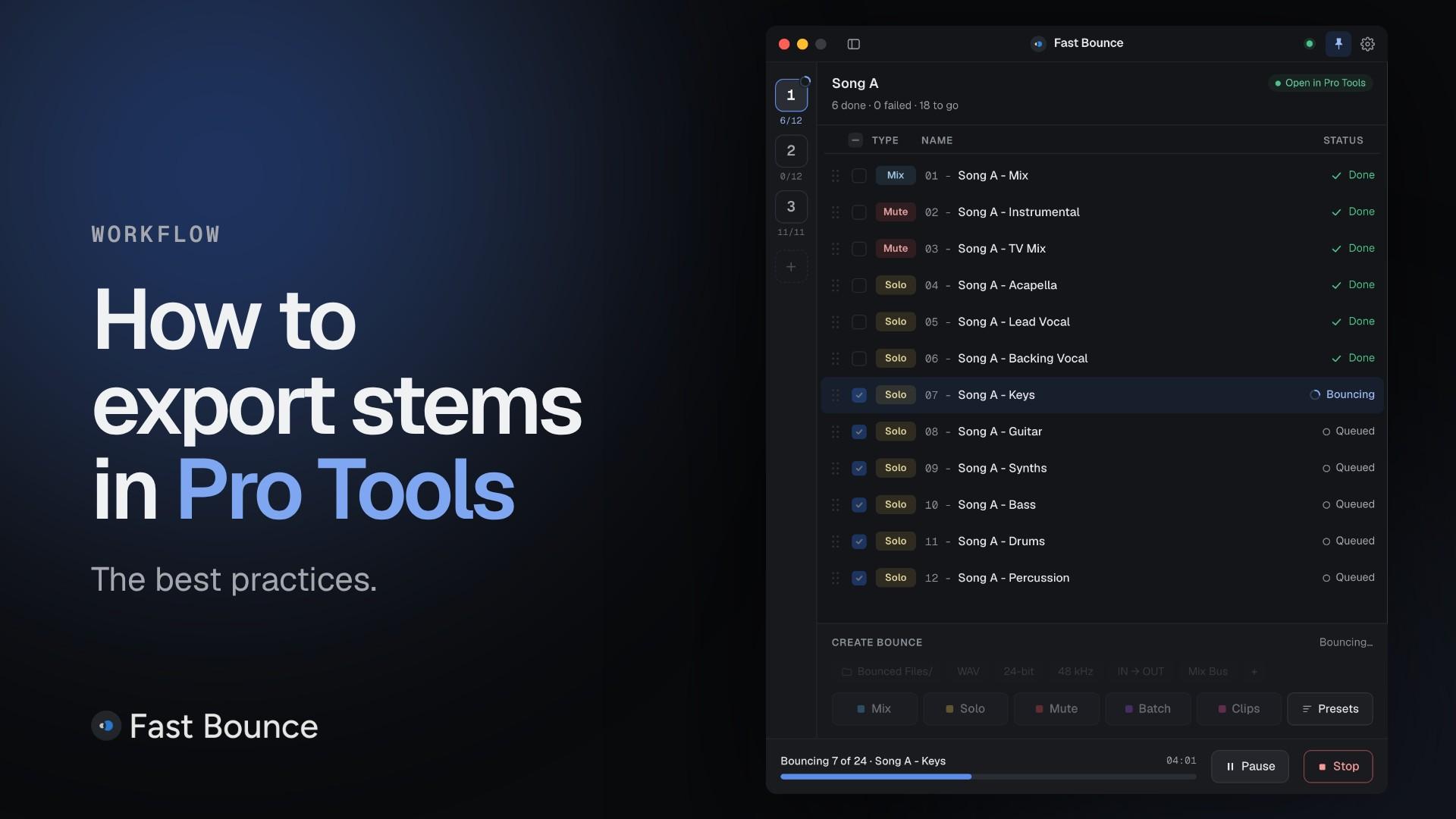
Fast Bounce is a bounce automation app for Pro Tools 2024.10 or later, on macOS and Windows. It drives Pro Tools through Avid's own scripting interface, and every file comes from Pro Tools' own Bounce Mix, so the naming and folder advice in this guide still applies. What changes is where the names come from:
Naming Rules set one rule per kind of bounce, mixing your own text with tokens such as Session name, Sample rate, Bit depth and Date, plus Track name in the Batch rule, Clip name in the Clips rule and Preset name in the Preset rule. Turn on Number bounces and every name gets 01, 02… in front, in the format you choose. Pick 01_Name and the number joins the name with an underscore, no spaces. The numbers follow each bounce's place in the session's list. See Naming Rules.
Batch adds one Solo bounce per track, picked by hand or by rule. Its Before and After fields build every name around the track name: type AB_NightDrive_JD02_ before and _96k24 after, and the Kick track's bounce is AB_NightDrive_JD02_Kick_96k24. With 01_Name numbering on and the stems first in the list, the stem number leads: 01_AB_NightDrive_JD02_Kick_96k24. See adding bounces.
Rename many bounces at once. Select them, press ⌘E, and Rename works on every name with Find and Replace, Trim, and Add before or after. A new revision is one Find and Replace: find JD01, replace with JD02. In the same sheet, set the Folder chip once to send the whole set to its new version folder. See editing bounces.
The Folder chip sets where each bounce lands: Bounced Files/ in the session folder by default, a subfolder of it that you type (/ nests, so Stems/JD02 gives Bounced Files/Stems/JD02/), a recent folder, or any folder on any disk. Point every stem at that song's Stems folder and its version folder. See the Setup chips.
Presets save the bounce kind, the tracks by name or rule and the Setup values. Load Sessions applies them to many sessions at once, and the Check step finds any missing track, bus or marker first.
Press Bounce…, set the session order and press Start Bouncing. On a paid plan, Fast Bounce switches sessions in Pro Tools by itself. Pro Tools bounces in the background while you keep using other apps. When it's done, the Bounce Summary lists every file made and any failure with its reason, so you can read every name before anything goes out.
The free plan has every bounce mode and presets, with up to 4 bounces per session and one session at a time. Paid plans add unlimited bounces and sessions, automatic session switching, the Bounce Summary by email, on the dashboard and on your iPhone, and AI agents. Compare plans.