Tips
Pro Tools Bounce Mix: Settings and Common Mistakes
Most Pro Tools mix deliveries end in the same window: Bounce Mix. It opens in a second, but one wrong setting can cut off a reverb tail, drop a track or leave a 16-bit file without dither. You often won't notice until the client does.
This guide covers how to bounce a mix step by step, what every setting in the Bounce Mix window does, when to bounce offline, and 8 common mistakes. The Pro Tools details follow Avid's Pro Tools Reference Guide.
How to bounce a mix in Pro Tools
Select the range. Make a timeline selection from the start of the song to a point after the last reverb or delay tail has died away. Without a selection, Pro Tools picks the length for you (see mistake 1).
Open Bounce Mix. Choose File > Bounce Mix, or press Command+Option+B (Mac) or Control+Alt+B (Windows).
Choose the Mix Source. Usually your main output.
Set the file options: file type, format, bit depth and sample rate.
Choose Offline or real time.
Name the file and choose where it goes.
Click Bounce.
Bounce Mix is the Pro Tools command that bounces an output or bus to an audio file. In older versions it was called Bounce to Disk: Avid renamed it in Pro Tools 2020.11.
Every Bounce Mix setting
Setting | What it does |
|---|---|
Mix Source | The path to bounce: any active output or bus path, or any physical output used in the session. |
More Mix Sources (+) | Pro Tools Studio and Ultimate can bounce several sources in one pass. Click + to add a row. |
Search | Since Pro Tools 2024.10 you can search output path names in the Mix Source menu, which helps in large sessions. |
File Type | WAV (BWF), WAV (Dolby Atmos ADM BWF, Studio and Ultimate), AIFF, M4A, MP3, MXF OP-Atom (Studio and Ultimate), MOV (only when the session has video) and Windows Media (Windows only). M4A is limited to 44.1 kHz or 48 kHz. |
Format | Mono (Summed), Multiple Mono or Interleaved. For a standard stereo delivery, Interleaved gives you one stereo file. |
Bit Depth | 16-bit, 24-bit or 32-bit float. |
Sample Rate | From 8 kHz to 192 kHz, including pull up, pull down and custom rates. |
Add MP3 | Makes an MP3 of each Mix Source next to the main file. |
Delivery Format | With several sources and WAV (BWF), Studio and Ultimate can write separate files or one interleaved file. |
Offline | Bounces faster than real time in most sessions. See the next section for what it leaves out. |
Pad to Frame Boundary | Rounds the range out to whole video frames, for files going into a video editor. |
Import After Bounce | Adds the new files to the session. Only when the sample rate matches the session and the bit depth is the same or lower. |
Location | Session Folder, Prompt for Location, or a fixed Directory. |
Presets | 5 quick presets on the buttons numbered 1 to 5, plus named presets you save and recall. |
Three notes on the settings people ask about most:
File names with several sources. Pro Tools adds the source name and a number to each file name. Clear bus names give you clear file names.
Delay compensation. Pro Tools compensates for bus and plugin delays when it bounces, so you don't handle plugin latency yourself.
Settings that aren't there. Some older tutorials show options such as sharing to online services. They aren't in the current Bounce Mix window.
Offline or real time?
An offline bounce doesn't play the mix in real time, so in most sessions it's faster. Use it for mixes that stay inside the computer. Use a real-time bounce when the session includes anything outside the computer's own processing.
Offline bounce arrived in Pro Tools 11, in 2013. How much faster it is depends on the session: Avid points to the mixer's size, DSP plugins, and the load on the CPU and the disk.
An offline bounce can't include:
hardware inserts
external MIDI-driven audio
external audio sources monitored through Aux Input tracks
DSP-only plugins
audio sources synchronized externally
If your mix uses any of these, such as an outboard compressor on a hardware insert, turn off Offline. The bounce then plays through in real time.
Offline isn't always faster either. Avid warns that in a very large session it can be slower than real time, and the disk sets a limit: at 50% disk load, an offline bounce is at most twice real-time speed.
A real-time bounce has one more advantage: you hear the mix as it bounces, so you can catch a problem while it plays.
8 common Bounce Mix mistakes
Each comes from how Pro Tools is designed to behave, so each is easy to prevent once you know it.
1. No selection
With no timeline selection, the bounce lasts as long as the longest audible track and, by default, ends at the last audio waveform or MIDI note. That cuts off any tail after the last clip, and it can carry on to stray clips left after the song. Always select the range you want.
2. A cut-off tail
A bounce stops exactly where the selection ends. Leave extra time for reverb tails, delays and other effects, and extend the selection until the tail has faded out.
3. A track missing from the bounce
Pro Tools leaves some tracks out on purpose: muted tracks, record-enabled tracks and tracks in Input Only monitoring. Check mutes, record buttons and input monitoring. Make sure every track is active and routed to the output you chose as the Mix Source.
4. A solo left on
If any track is soloed, only the soloed tracks are bounced. A solo left on from your last listen turns a full-mix bounce into a single instrument. New Aux Input tracks are solo safe by default, so effect returns usually stay in, but check yours. Clear every solo before you bounce the full mix.
5. Offline with hardware inserts
Outboard gear on hardware inserts isn't in an offline bounce. If your mix depends on outboard, turn off Offline.
6. 16-bit without dither
Bounce Mix doesn't dither when it lowers the bit depth. For 16-bit files, insert a dither plugin last on a Master Fader assigned to your Mix Source path. Avid says this applies even to a 16-bit session. For 24-bit files, Avid says not to use a dither plugin.
7. The wrong Mix Source
The Mix Source menu lists every active output and bus path, plus the physical outputs used in the session. Picking a headphone output or a submix bus by accident gives you a file that doesn't match what you heard. Check the source name before you click Bounce.
8. Several sources on Pro Tools Artist
Bouncing several Mix Sources in one pass is a Pro Tools Studio and Ultimate feature. On Artist, bounce each source on its own.
Bounce Mix vs Track Bounce vs Commit vs Freeze
Pro Tools has several ways to turn processing into audio. They do different jobs:
Command | What it does | Result |
|---|---|---|
Bounce Mix | Bounces a mix path: an output, a bus or a physical output | Files on disk |
Track Bounce | Bounces the selected tracks directly, with no rerouting | Files on disk |
Commit | Writes a track's output, with its processing, to a new track | A new track in the session |
Freeze | Replaces the track's playback with its processed audio, until you unfreeze it to edit | The same track, frozen |
Bouncing stems rather than a stereo mix? Our guide to exporting stems in Pro Tools compares these methods.
Your pre-bounce checklist
Select the full range, tails included.
Clear solos, record-enabled tracks and any mute you don't want.
Check the Mix Source.
Match file type, format, bit depth and sample rate to the spec. For 16-bit, put a dither plugin last on a Master Fader assigned to the Mix Source path.
Bounce offline for mixes inside the computer, in real time when outboard is involved.
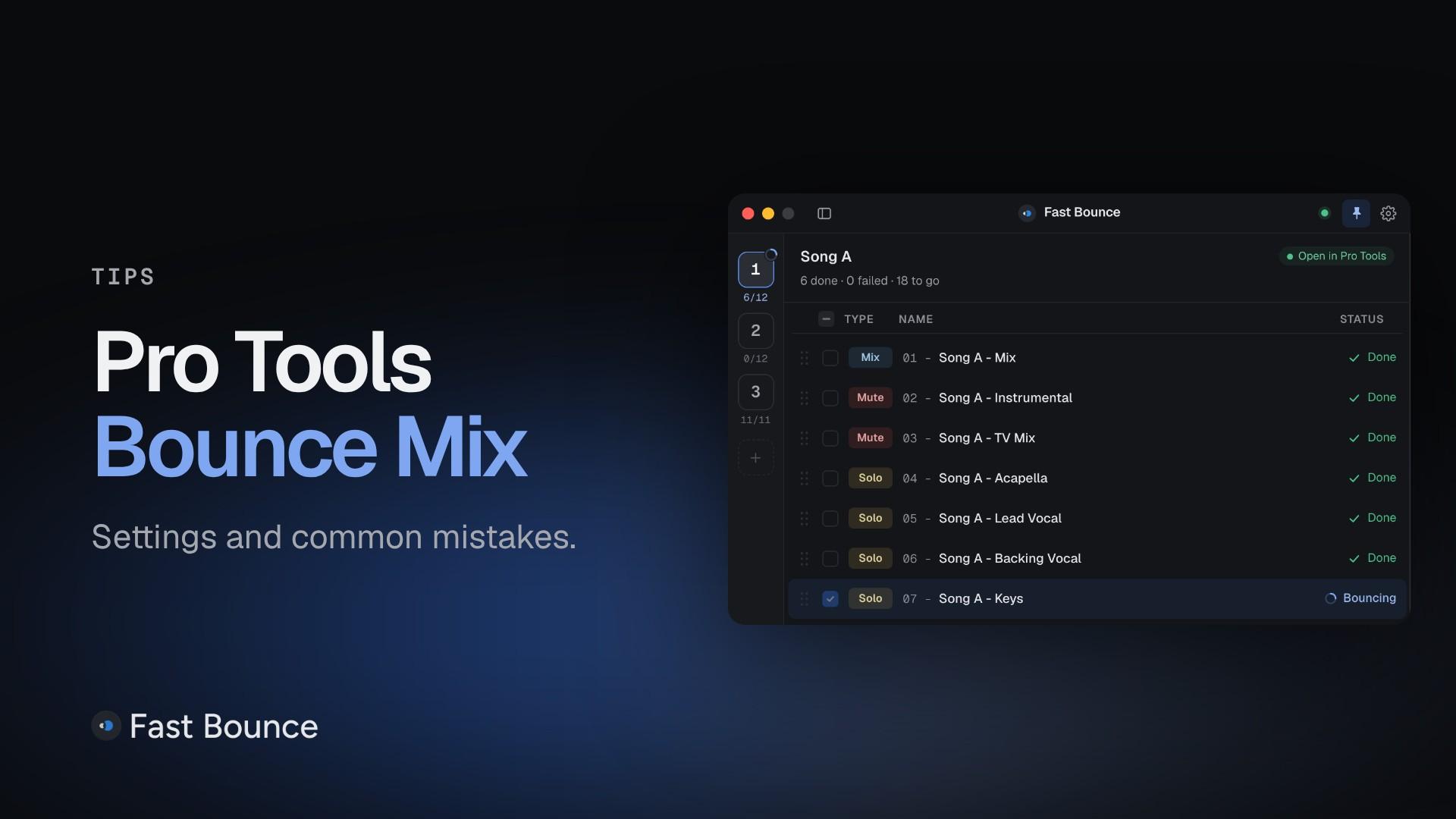
Every bounce, set up once, with Fast Bounce
A single bounce is quick. The time adds up when you deliver many songs, each with alternate versions and stems: every bounce has to be set up, started and waited for. Bounce Mix presets keep the settings the same, but you still start each bounce yourself.
Fast Bounce is a bounce automation app for Pro Tools 2024.10 or later, on macOS and Windows. It hands every bounce to the same Bounce Mix, so everything in this guide still applies: mutes, solos, dither and what offline leaves out. Each bounce carries its own Setup, a row of chips:
Folder:
Bounced Files/in the session folder by default, a subfolder you type, or any folder.File type, Bit depth, Sample rate: WAV, AIFF or MP3; 16, 24 or 32-bit float; 44.1 to 192 kHz.
Range: a pair of memory locations, a memory location that holds a range, or the timeline selection. Every bounce starts and ends exactly where you set it.
Mix source: the bus or output to bounce. Pick several and one bounce makes one file per source in the same pass.
Options: Realtime bounce for outboard gear, Pad to frame boundary and Import after bounce.
Need a WAV and an MP3 of the same mix? Duplicate the bounce (⌘D) and change the copy's file type. Bounce Defaults set what every new session starts with, and your session's own values fill in the rest.
Add your bounces, press Bounce…, then Start Bouncing. Pro Tools bounces in the background, so you can keep using other apps. When it's done, the Bounce Summary lists every file made and any failure with its reason. The free plan has every bounce mode and presets, with up to 4 bounces per session. See every Setup chip in the guide, or compare plans.